Gemini App for Windows
Google's native desktop Gemini app for Windows 10 and 11 — press Alt+Space to open Gemini over your active work, with Nano Banana image generation and Gemini Omni video built in.
Last verified · 2026-10-23 · by Moe Ameen
Published 2026-09-11 · Updated
Short answer
The Gemini app for Windows is Google's native desktop Gemini assistant for Windows 10 and 11, released on September 10, 2026 and downloadable at gemini.google/desktop. Press Alt + Space to open Gemini over any app. It makes images with Nano Banana and video with Gemini Omni, and it connects to Gmail and Google Drive. Gemini Spark and Omni video need a Google AI subscription.
Key takeaways
- Google released the Gemini app for Windows 10 and 11 on September 10, 2026.
- Alt + Space opens Gemini over whatever you are working on.
- It generates images with Nano Banana and video with Gemini Omni.
- Gemini Spark and Gemini Omni video need a Google AI subscription.
- It drafts and generates; Kompozy turns those drafts into scheduled, published posts.
What is the Gemini app for Windows?
The Gemini app for Windows is Google's native desktop version of its Gemini assistant, released on September 10, 2026 for Windows 10 and 11. It is free to download at gemini.google/desktop.
The defining feature is a global keyboard shortcut: press Alt + Space anywhere in Windows and a Gemini window opens on top of whatever you are doing, so you can ask something, generate an image or clip, or fire off a task without leaving your current app, then jump straight back. Google calls it "lightweight and quiet" — it wraps the Gemini experience, with dedicated workspace areas for managing projects, in a footprint meant to run without slowing your PC.
Inside that window you get Google's generative stack on the desktop. Nano Banana handles image generation and Gemini Omni handles video, both reachable from the same surface as chat. It also connects to Google services like Gmail and Google Drive, so Gemini can pull from your own material to draft a summary or answer a question. Google's launch post also says you can hand off multi-step tasks to Gemini Spark, its personal AI agent, which needs a Google AI subscription.
Access is tiered in the usual Google pattern. The app and base chat are free; richer Gemini Omni video generation requires a paid Google AI subscription. Google has framed the Windows release as the first of "more native desktop capabilities rolling out over time," so treat exact feature gating and plan requirements as a launch-window snapshot and confirm them on Google's page.
The honest framing for a creator: this is an outstanding always-available assistant, now bolted to your desktop so help is one keystroke away mid-workflow. It is not a content-production or publishing system. It does not caption or reframe a clip for six platforms, build a brand-exact carousel, generate a talking-head avatar video, or schedule and post anything. It gives you fast raw material in the flow of work; finishing and distributing it is a separate job.
What can you make with the Gemini app for Windows?
- Instant drafts — hooks, captions, scripts, outlines — summoned with Alt+Space over whatever app you are in
- AI images from a prompt via Google's Nano Banana generation, right on the desktop
- Short video clips directed with Gemini Omni (richer output typically needs a Google AI plan)
- Summaries and answers drawn from your own Gmail and Google Drive via connected Google services
- Quick rewrites, tone shifts, and fact-checks on text you have open without switching windows
How does Kompozy turn Gemini desktop output into published posts?
The Alt+Space overlay makes the Gemini app for Windows a brilliant in-the-flow assistant: a hook, a rewrite, a quick image, a rough clip, summoned without breaking stride. But "summoned over your work" is where it stops — what you get back is a draft in a chat window or a file in a folder, not a finished post on a schedule. Kompozy is the production line that starts where that keystroke ends. It is a full AI content generation and multi-platform publishing engine, not an assistant, so it takes the raw material you pulled out of Gemini and turns it into a coordinated week of on-brand content.
The loop is tight because the two tools do not overlap. Use Alt+Space to draft a script, brainstorm angles, or generate a Nano Banana image at your desk; then paste that draft (or drop that media) into Kompozy's Quick Ingest. From one source Kompozy fans out an avatar-narrated Persona Short, brand-exact Carousel Posts and quote graphics, native text posts, a blog article, and an email newsletter — formats the Gemini app never produces — each governed by a Persona Brief so nothing reads like a generic prompt. You review each piece behind a per-post gate, and Autopilot schedules and publishes it across the eight social platforms plus blog and email. Gemini lives on your desktop to make the spark; Kompozy turns the spark into a week of published posts.
- Press Alt + Space in Windows to open Gemini over your current work, and draft a script, hook, or outline — or generate a Nano Banana image or Gemini Omni clip.
- Copy the draft, or save the generated media, and drop it into Kompozy's Quick Ingest as a source.
- Generate a Persona Short, Carousel Posts, quote graphics, a blog article, and a newsletter from that one source, all governed by your Persona Brief.
- Let HyperFrames keep every image and video brand-exact while the Persona Brief holds the voice consistent across formats.
- Review each piece behind the per-post gate, then schedule and publish across the eight social platforms plus blog and email via Autopilot.
What does this look like in Kompozy?
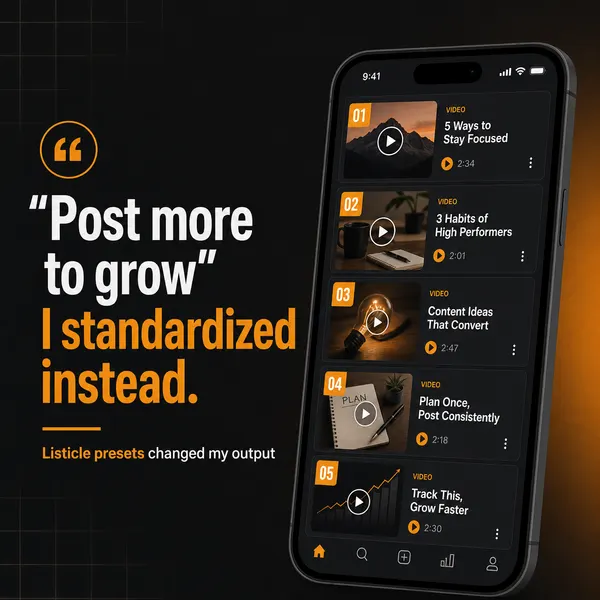
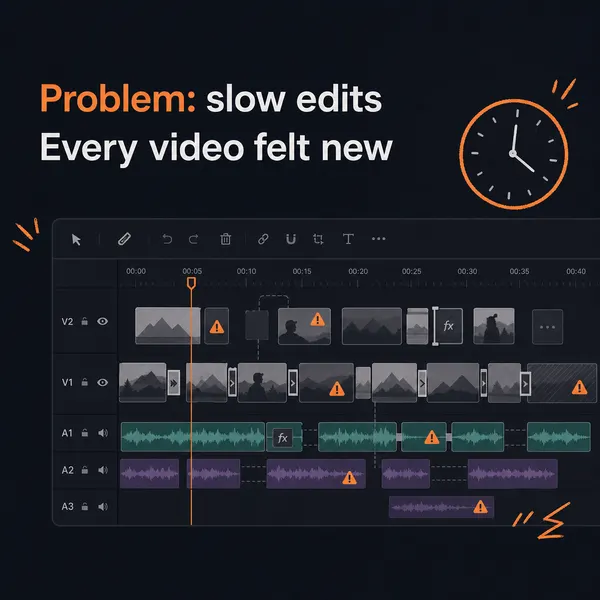
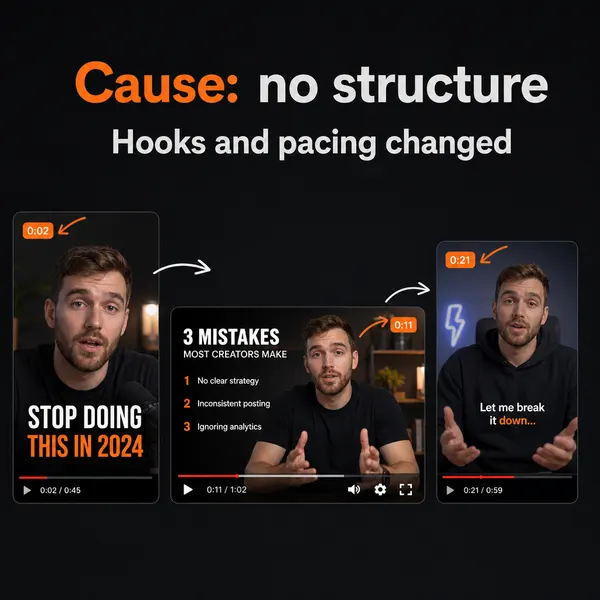
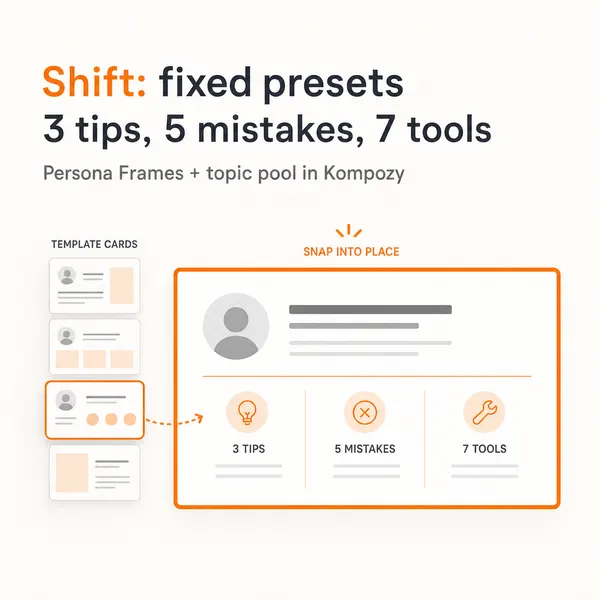
A real carousel rendered in the Kompozy workspace. We did not make it about the Gemini app for Windows. It is here so you can see what the format looks like when it comes out finished.
Who is this for, and who should skip it?
Best for:
- Windows users who want Gemini one keystroke away during work
- People who already live in Gmail and Google Drive
- Creators who brainstorm hooks, scripts, and quick images at the desk
Not ideal for:
- Anyone who needs captioned, platform-sized posts out of the box
- Users who want video generation without a paid Google AI plan
- Teams standardized on another assistant, such as Copilot or ChatGPT
Frequently asked questions
What is the Gemini app for Windows?
It is Google's native desktop Gemini app for Windows 10 and 11, released September 10, 2026. Press Alt + Space to open Gemini over your active work; it includes chat, Nano Banana image generation, Gemini Omni video, and ties into Google services like Gmail and Google Drive. It is free to download at gemini.google/desktop. Google says Gemini Spark and Gemini Omni video need a Google AI subscription.
Is the Gemini app for Windows free?
The app and base chat are free. Richer Gemini Omni video generation requires a paid Google AI subscription. Plans and gating change, so confirm current tiers on Google's page.
Can the Gemini app for Windows post to social media?
No. It drafts text and generates images and video on your PC, but it has no captioning, per-platform sizing, scheduling, or publishing. To turn a Gemini generation into finished posts across platforms, you bring it into a content engine like Kompozy.
How does the Windows app differ from the Mac Gemini app?
It is the same core experience — a lightweight desktop Gemini summoned with Alt + Space — brought to Windows 10 and 11 after Google's Mac app. Google says more native desktop capabilities will roll out over time.
How do I go from a Gemini desktop draft to a published post?
Draft or generate with Alt + Space, then move the output into Kompozy. Kompozy produces the finished formats — persona video, carousels, quote cards, blog, newsletter — in your brand voice and publishes them across the eight social platforms plus blog and email, which the Gemini app does not do.
How do we know this?
We checked every figure and product claim on this page against the sources listed below on 2026-10-23, and removed or corrected anything they did not support. Kompozy plan and platform details come from kompozy.io/pricing and kompozy.io.
Sources
- Google: The Gemini app is now on Windows (read 2026-10-23)
- TechCrunch: Gemini Spark is now available on Mac (read 2026-10-23)
- Kompozy: Home (read 2026-10-23)
Related tools
- Gemini App — Google's consumer AI assistant — chat, voice conversations with live camera and screen sharing, image generation, and deep research on Android, iOS, web, and desktop. It crossed one billion monthly active users in August 2026.
- Gemini Spark — Google's agentic desktop assistant — it reads and organizes your files, runs Workspace tasks, and monitors topics, now on Mac.
- Gemini Agent — Google's AI agent that runs multi-step tasks for you — Deep Research, live web browsing, and Gmail/Calendar actions, with confirmation before it spends or sends.
- OpenAI Voice Mode (Desktop) — ChatGPT Voice on the macOS and Windows desktop app — talk to control your computer and direct Codex and ChatGPT Work agents by voice while it speaks, listens, and coordinates at once.
- Cue — A voice-activated AI agent that lives on your Mac or Windows desktop — press a hotkey, speak, and it dictates in any app or runs multi-step agentic tasks by reading your screen.
- Gemini in Gmail, Docs & Keep (Live) — Google's voice-driven Gemini features inside three Workspace apps — Gmail Live, Docs Live, and Keep Live — so you can talk to your inbox, dictate a document, and turn spoken brain-dumps into organized notes, hands-free.